Why `IMG_8493.jpg` is Killing Your SEO (And How to Fix It in 3 Seconds)
You just finished an incredible photoshoot or finalized the mockups for your latest web project. You're ready to publish. You upload everything to your CMS.
And then, the invisible tragedy occurs: your media folder is filled with files named DSC_0912.jpg, Screen Shot 2026-02-28 at 19.00.00.png or P1010045.HEIC.
If you do this, you are literally telling Google to ignore your content.
File naming is the most underrated, easiest to understand, yet most frequently neglected SEO optimization out of pure laziness. Here's why you need to stop letting your camera decide for you, and how to automate this process without spending the whole night on it.
Google is (Almost) Blind
Despite all the advancements in AI and computer vision, Googlebot remains fundamentally a text-based robot. To understand what an image is about, it relies on three main clues:
- The text surrounding the image.
- The
alttag (alternative text). - The file name itself.
Imagine Google scanning your page about film photography.
- File A:
IMG_4402.jpg - File B:
canon-ae1-program-film-black.jpg
For File A, Google only sees a meaningless string of numbers. For File B, even before analyzing the image, Google has already identified four strong keywords: "Canon", "AE1", "Film", "Black".
If a user types "Canon AE1 black" in Google Images, guess which photo will rank first? It's mathematical.
The 3 Golden Rules of SEO Naming
Renaming images is not something you improvise. There are technical conventions to follow specifically to keep servers and search engines happy.
1. The Hyphen is King (Hyphens vs Underscores)
This is the most important rule. Google treats the hyphen (-) as a space, but treats the underscore (_) as a connector.
red_car.jpgis read by Google asredcar(an unknown word).red-car.jpgis read asred+car.
The Rule: Always use hyphens (kebab-case).
2. All in Lowercase (Lowercase)
Most web servers run on Linux, which is Case Sensitive. For a server, Image.jpg and image.jpg are two different files. This creates stupid and avoidable broken links (404 errors).
The Rule: Ban uppercase letters.
3. No Stop Words (Stop Words)
Keep your file names short and punchy. Remove "the", "a", "of", "with". They bring no semantic value and lengthen the URL unnecessarily.
- Bad:
photo-of-my-cat-sleeping-on-the-couch.jpg - Good:
cat-sleeping-couch.jpg
The Problem: Temporal Friction
If you have 50 wedding photos or 20 screenshots for a tutorial, the idea of doing Right-click > Rename on each file is a nightmare. This is the exact reason why nobody does it.
This is where most people turn to questionable online tools. But ask yourself: do you really want to upload your clients' wedding photos or your confidential assets to an unknown server just to change a name?
The answer is no.
The Solution: Local Renaming with FeatherPix
It is to solve this workflow problem that I integrated a Batch Renaming engine directly into FeatherPix.
Unlike traditional tools, FeatherPix uses WebAssembly. This means the renaming is done locally, right inside your browser. Your images never leave your computer.
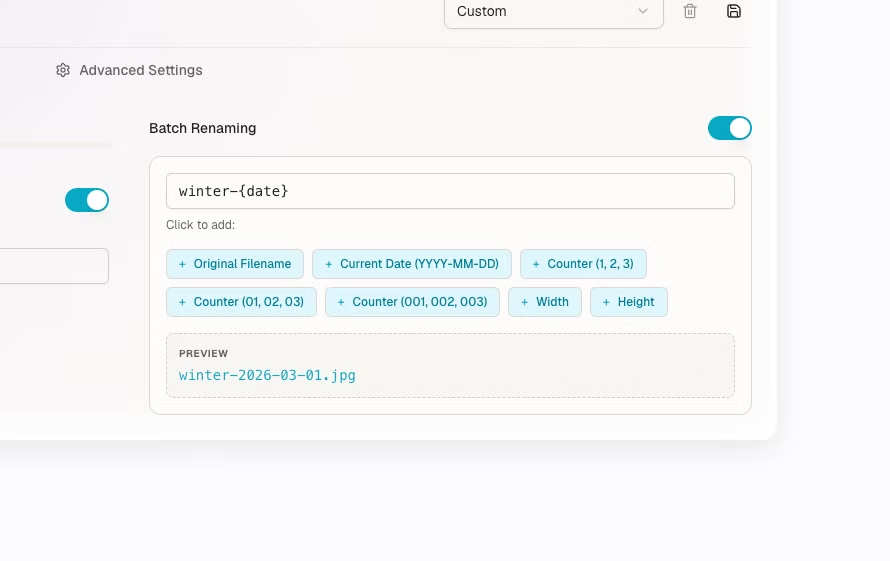
How does it work?
- Drag your 100
DSC_xxxx.jpgfiles (or even your HEIC files). - Enter a simple pattern, for example:
wedding-sophie-thomas-{n}. - FeatherPix instantly renames the whole list to
wedding-sophie-thomas-001.jpg,002.jpg, etc. - As a bonus, it converts everything to WebP or AVIF for maximum performance.
You get files that are optimized for SEO, light for the web, and perfectly organized, without waiting a single second for uploads.
Stop sabotaging your own SEO. Take control of your file names.
👉 Try batch renaming on FeatherPix.com